Payroll/Administration is an easy-to-use remittance processing tool available through the Sponsor applications. This electronic payroll interface automatically reconciles the data you provide to your recordkeeper with its recordkeeping system, giving you complete control over payroll processing accuracy.
Depending on your plan settings, you'll use Payroll/Administration to submit and fund payroll contributions and/or loan repayments and if applicable, enroll eligible participants, update participant demographic data. Payroll/Administration has built-in edit functionality to ensure that accurate and valid data is received.
Some functions shown may not be available depending on your plan's setup. If
you have any questions, please contact your account manager
Payroll/Administration is easy to use, with clearly-labeled screens. Payroll/Administration enables you to perform the following functions:
The Sponsor application menu options are driven by "permissions" given to the User by the plan Sponsor. If the User does not see the desired menu item, it means that they don't have the appropriate permission to view that menu item. A Sponsor contact with Sponsor Web "Administrative Rights" can add, edit or delete users and permissions directly online. This is done through the Web Access Authorization link on bottom left of Sponsor Web Home page.
To deactivate a user ID and password, please contact your Plan Manager. Since Payroll/Administration allows you to access sensitive data, it is important to notify your recordkeeper immediately if a user ID should be terminated.
You will only be able to access clients and divisions for which you have permissions. This may affect file uploads, as any participants in divisions not permitted will appear as errors. Please contact your plan manager if you have any questions regarding division access.
Payroll/Administration is available during the hours posted on your plan's Welcome page. Scheduled maintenance may interrupt accessibility.
Depending on the plan type, for most transactions there are two paths you can use to enter data. You can either enter it manually, or you can import a batch file that contains data for multiple transactions of the same type. The first time you use a particular type of file, you'll create a new template. The template is a map of the data contained in the file so that the system knows which piece of information each column holds. Once you create at least one template for a transaction, you can keep using it over and over. If you make a change to your data file, you'll need to make a corresponding change to the template, or create a new one.
Do not use the "BACKSPACE" key on your keyboard to navigate through the entry fields on Payroll Administration screens; it will cause you to lose all the data you have entered by returning to the previous screen without saving. Instead, use your mouse or arrow keys to move around the screen.
Similarly, do not use the "BACK" button in your browser. Use the internal navigations buttons in the system to return to the last screen.
If you forget and go to an "unavailable" page, try clicking the "REFRESH" button to reload your page. You can continue to use the page but will have to re-enter any unsaved data.
We follow an Internet security strategy that is designed to protect corporate and customer assets from unauthorized access at all times and to monitor activities of both insiders and outsiders to assure that our customers’ data is protected from Internet abuse. In recognition of the fact that the Internet is a fast-changing environment and new threats are always emerging, we contract with outside firms for scheduled and as-needed security audits of our Internet security architecture and implementation. The next sections present the security design, the security monitoring controls we use, and the results of recent external audit tests.
All Internet servers are protected by firewalls. The firewalls support a configuration commonly referred to as a “DMZ.” This configuration lets the firewall permit service requests from the Internet to the DMZ and from the DMZ to internal databases. No databases are located in the DMZ. Secure connections using 40 or 128-bit encryption are available. All servers in the DMZ, both UNIX and NT, are configured according to a standard process that certifies the machines as “production ready” and secured to a standard acceptable to our Corporate Audit department. The certification process enables controlled monitoring of the servers and logging of system administrators’ activities to a centralized log server.
The firewalls themselves are similarly configured. They are monitored and secured according to a certification process customized for firewalls. Today, all firewalls run on UNIX servers that can support up to 16 Ethernet or Fast-Ethernet interfaces. Switches are used in DMZ rather than shared-media hubs, as switches provide not only dedicated access, but also would prevent a compromised machine from being able to “sniff” packets to/from the other machines in the LAN. Finally, firewall oversight includes 7x24 monitoring of firewall administrative activity (largely the loading of new rule bases) and events logged by the server management processes.
Certification starts with the configuration of a server for its specific purpose. As the operating system is installed, processes are enabled or disabled. In general, UNIX servers “out-of-the-box” will run any service and have a number of standard accounts set up. The certification process strips the machine down to its bare necessities: required daemons, a cleaned-up version of sundial, minimal, if any, trust relationships to other machines, and deletion of standard user IDs. NT servers are handled similarly at the operating system level, the goal being to run only what is needed and with the latest security patches installed from the start.
Monitoring processes are then installed that will enable 7x24 monitoring of the servers important processes. In the case of Web servers, the http daemon would be monitored. Each server is supported by on-site and on-call staff identified prior to the server being placed in production. At the top level is the application “owner,” who is responsible for investigating unusual or suspect application problems or activities.
Voya FinancialTM uses intrusion detection software and
has intrusion detection engines in all of our North American Internet access
points and DMZ. Alerts are generated to monitoring systems and, depending on
the severity, an investigation is begun or remedial action started. We receive
updated attack patterns approximately every quarter and sooner if a dangerous
attack is released. Intrusion detection is not virus detection, which is handled
by the LAN departments. Intrusion detection is a supplement to stateful packet
inspection in that it can inspect across multiple packets and into the data
portion of a packet.
Intrusion detection is emerging as a powerful security function and we expect
to continue to expand the service to other [non-Internet] access points to our
network and to use its more advanced remedial action features to respond to
network-launched attacks.
We contract with a top Internet security firm to run vulnerability scans against all firewall interfaces facing the Internet. Scans are run quarterly and reports are presented within a few weeks of the scans. This year, two comprehensive scans have already been run and have confirmed that our access is from the Internet is indeed limited to the expected networks and services only. In sum, we passed.
We also use a commercial product to run our own internal scans and publish Web-readable reports for management and audit reviews. The most significant purpose of the internal scan is to confirm that new firewalls were installed per the certification standard and as a check against new vulnerabilities in previously installed firewalls.
Our firewalls are under the auspices of the security certification process. This enables system activity to be logged and reviewed in a timely manner. In addition, this review is conducted independently of the firewall design and installation processes. This separation of duties functions as a control point over the network engineering departments involved in planning, deployment and support.
The login session will expire after 30 minutes of inactivity. After 25 minutes,
you will see a warning that you will time out soon. Click OK to continue
working or Cancel to allow your session to expire.
The Select Plan screen provides a list of plans for which you have access. If you have access to multiple plans, you will be able to select the appropriate plan.
Select Plan Screen
Note: You can only access one plan at a time.
If you have access to 25 plans or more, there will be a search box to enter the plan ID number.

Select Plan Screen (with search box)
The Welcome screen provides a horizontal navigation bar at the top of the screen to access the functions of the Payroll/Administration application. The Welcome screen will also appear as a default screen when most operations have been completed or canceled. At the bottom of the screen, the hours of availability are listed.

Welcome Screen
To log out of Payroll/Administration, click Close in the upper-right corner of the screen. This closes the Payroll/Administration application. Other applications can be accessed at this point, or you can log out completely.
If your selected plan is set up for ACH transmission, there will be a Bank Information link on the Welcome page. If you do not see a link, check with your Voya plan manager to change your bank information.
To modify bank information, click the link in the middle of the screen below the plan information. Current bank information will be displayed. If there is no banking information, you will see a message to that effect.

You may modify the following fields:
Please remember the following when changing the bank account:
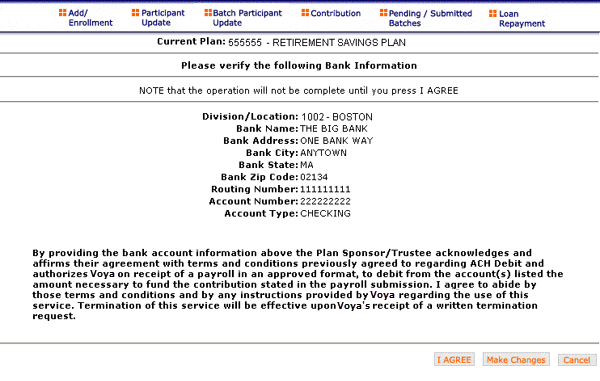
Please review the information you have entered for accuracy, as well as the agreement statement underneath.
Note: Remember, only one bank account change should be made for any
particular day, and all contribution activity made for that day will come from
the account you entered. See the Alert for more information.
Note: When you click I Agree you will see a confirmation message:
Bank Information has been successfully submitted.
This screen confirms that your changes have been saved. You may print out this confirmation for your records.
You can use the Enrollment section of Payroll/Administration to enroll new participants into the plan, if applicable. You can also use Add/Enrollment to add indicative data for new participants who enroll in the future. The Enrollment screens contain data entry fields into which you will enter participant data. If you fail to update a necessary field, the system will prompt you to return to the screen and enter the appropriate data.
The plan must have Enrollment import activated to use this feature. If active, the first screen upon clicking Enrollment will be an option to import an Enrollment file. To use the Import File feature, you must use Internet Explorer version 7.0 or higher.

Import File Option
The Enrollment file to be imported must meet these conditions:
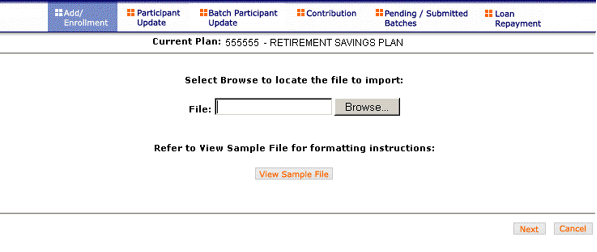
File Browse Screen
Click View Sample File to view a PDF of a sample Excel file.
Note: When you are in the process of creating a template, and attempt to change screens, you will be prompted to save the template.
XXXXXThe Enrollment Import feature is used as an alternative for manually entering data on the Enrollment screen to add employee indicative data to the system from a prepared file.
When importing a file, verify that the template you selected contains the correct number of columns to accomodate the number of columns in the file so the file data formats correctly. You can add columns to an existing template or, if necessary, click Create New Template to create a new template that matchs the format of the imported file.
All felds/cells should be formatted as text.
| Social Security Number | Must be nine digits. |
| Leading zeros must be included. | |
| Acceptable formats: 999-99-9999, 999/99/9999, or 999999999. | |
| If the Social Security number format does not contain hyphens or slashes, make sure that the field is formatted as text. In MS-Excel, a green triangle indicates that you have stored values as text. | |
| Full Name | Separate fields/columns are required for Last Name, First Name and Middle Initial. |
| Last Name+ First Name + and Middle Initial fields cannot exceed 30 characters when combined. | |
| Address Line 1 | Maximum 40 characters. |
| Address Line 2 | Maximum 40 characters. |
| City | Maximum 28 characters. |
| State Code | 2 characters are required if the country is USA or Canada. |
| Postal Code | Applicable only if country is USA or Canada. |
| USA ZIP codes may consist of 5 or 9 digits (no dashes). | |
| Canadian postal codes contain 6 characters. | |
| Birth Date | Acceptable formats: MM-DD-CCYY, MM/DD/CCYY or MMDDCCYY. |
| Eight digits are required. | |
| Leading zeros in months must be included. For example, 02 for February, not 2. | |
| Employee must be between 15 and 75 years of age for employment. | |
| Hire Date | Acceptable formats: MM-DD-CCYY, MM/DD/CCYY or MMDDCCYY. |
| Eight digits are required. | |
| Leading zeros in months must be included. | |
| Plan Entry Date | Defaults to the current date.. |
| Division Codes | Four-digit division code. If you receive the error "Participant not in authorized division/location," Please validate the division/location you entered. If you have entered the correct division/location, please contact your plan manager. |
| Payroll Frequency | Formatted as one digit: 4 - Monthly 5 - Semi-monthly 6 - Bi-weekly 7 - Weekly Maybe be optional depending on plan rules. |
If any optional fields are blank, or contain only a hyphen, Payroll/Administration bypasses the field completely. For the purposes of investment election, a blank is the same as a zero (0.00). Blank dollar amount fields are bypassed for Contribution and Loan Repayment import files.
| Actual hours, plan year-to-date (for vesting purposes) | Accumulate option (special set-up required). The amount submitted is added to the existing total. |
| Hours must be submitted in whole numbers and must not exceed three digits. | |
| Anniversary hours (for plan eligibility rules) | Must include decimal point; limited to two digits after the decimal. |
| Do not include dollar signs or commas (for example: 1250.00). | |
| Current Hours (plan year or anniversary hours) | Submit in whole dollars only. |
| Must include decimal point, limit to two digits after the decimal. | |
| Annual Salary | Do not include dollar signs or commas (for example: 45000.00). |
| Submit in whole percentages only. Special set-up required for fractional amounts. | |
| Deferral Amount | Must include decimal point, limit to two digits after the decimal. |
| Do not include % or commas. Example: 250.00. | |
| Submit in whole percentages only. Special set-up required for fractional amounts. | |
| Deferral Percentage (if required by your plan) | Must include decimal point; limited to two digits after the decimal. |
| Do not include % symbol (for example 10.00, 50.00, 40.00). | |
| Investment Elections must total 100.00%. | |
| Investment Elections | Submit in whole percentages only. Special set-up required for fractional amounts. |
| Must include decimal point; limited to two digits after the decimal. | |
| Do not include % symbol (for example 10.00, 50.00, 40.00). | |
| Investment Elections must total 100.00%. | Eligibility Exclusion | One character |
| Y - Exclude participant from eligibility N (or blank) - Process participant for eligibility. |
|
| Employee Number | Maximum 13 characters. |
| Gender |
One character format: |
| Marital Status |
One character format: |
| .CSV-files must be comma delimited. Quotation marks must be removed from any values containing either single (' ') or double quotation (" ") prior to being imported into Payroll Administration. | |

Enrollment Import File Sample in MS Excel Format

Enrollment Import File Sample in .CSV Format
The Batch Participant Import feature is used to update indicative data for multiple employees at one time, on one screen. The Enrollment Import feature is used as an alternative for manually entering data on the Enrollment screen to add employee indicative data to the system from a prepared file.
| Social Security Data | |
| Social Security Number | Must contain nine digits. |
| Leading zeros must be included. | |
| Acceptable formats: 999-99-9999, 999/99/9999, or 999999999. | |
| If the Social Security number format does not contain hyphens or slashes, make sure that the field is formatted as text. In MS-Excel, a green triangle indicates that you have stored values as text. | |
| Participant Name Change | |
| Full Name | Separate fields/columns are required for Last Name, First Name and Middle Initial. |
| Last Name+ First Name + and Middle Initial fields cannot exceed 30 characters when combined. | |
| Address Name Change | |
| Address Line 1 | Maximum 40 characters. |
| Address Line 2 | Maximum 40 characters. |
| City | Maximum 28 characters. |
| State Code | 2 characters if the country is USA or Canada. |
| Postal Code | Applicable only if the country is USA or Canada. |
| USA ZIP codes may consist of 5 or 9 digits (no dashes). | |
| Canadian postal codes contain 6 characters. | |
| Eligibility and Status Information | |
| Birth Date | Acceptable formats: MM-DD-CCYY, MM/DD/CCYY or MMDDCCYY. |
| Eight digits are required. | |
| Leading zeros in months must be included. | |
| Employee must be between 15 and 75 years of age for employment. | |
| Hire Date | Acceptable formats: MM-DD-CCYY, MM/DD/CCYY or MMDDCCYY. |
| Eight digits are required. | |
| Leading zeros in months must be maintained. | |
| Termination Date | Acceptable formats: MM-DD-CCYY, MM/DD/CCYY or MMDDCCYY. |
| Eight digits are required. | |
| Termination Reason | Must include one of the following values: V - Voluntary 1 - With Cause 2 - Laid Off 3 - Special 4 - Retirement 5 - Permanent Disability 6 - Death |
| Anniversary Hours (for plan eligibility rules) | Overlay method - values should be accumulated year-to-date. |
| Hours must be submitted in whole numbers and must not exceed four digits. | |
| Current Hours (plan year or anniversary hours) | Accumulate option (special set-up required). The amount submitted is added to the existing total. |
| Hours must be submitted in whole numbers and must not exceed four digits. | |
| Eligibility Exclusion | Formatted as one character: |
| Y - Exclude participant from eligibility N (or blank) - Process participant for eligibility |
|
| Vesting Information | |
| Actual hours, plan year-to-date (for vesting purposes) | Overlay method - values should be accumulated year-to-date. |
| Hours must be submitted in whole numbers and must not exceed four digits. | |
| Current Hours (plan year or anniversary hours) | Accumulate option (special set-up is required). The amount submitted is added to the existing total. |
| Hours must be submitted in whole numbers and must not exceed three digits. | |
| Vesting Date | Acceptable formats: MM-DD-CCYY, MM/DD/CCYY or MMDDCCYY. |
| Eight digits required. | |
| Leading zeros in months must be maintained. | |
|
If vesting method is not based on date of hire, populate vesting date depending on your calculations, otherwise enter the date of hire. See the Rehire Fields section for more information. |
|
| Years of service | Maximum of two digits. |
| Payroll Remittance | |
| Division Codes | Four-digit division code. If you receive the error "Participant not in authorized division/location," validate the division/location you entered. If you have entered the correct division/location, please contact your plan manager. |
| Payroll Frequency | Formatted as one digit: 4 - monthly 5 - semi-monthly 6 - bi-weekly 7 - weekly |
| May be optional depending on plan rules. | |
| Other Data Elements that Apply to Your Plan | |
| Annual Salary | Must include decimal point; limited to two digits after the decimal. |
| Do not include dollar signs or commas (for example: 45000.00). | |
| Employee Number | Maximum 13 characters. |
| Gender | One-character format: 1 - Male 2 - Female |
| Marital Status | One-character format: 1 - Single 2 - Married |

Batch Participant Update Import File Sample in MS Excel Format

Batch Participant Update Import File Sample in .CSV Format
All fields/cells should be formatted as text.
| Social Security Number | Must contain nine digits. |
| Leading zeros must be included. | |
| Acceptable formats: 999-99-9999, 999/99/9999, or 999999999. | |
| If the Social Security number format does not contain hyphens or slashes, make sure that the field is formatted as text. In MS-Excel, a green triangle indicates that you have stored values as text. | |
| Participant Name | Not required. |
| Contribution Source Columns | If the file does not contain decimals (values are implicit -see below), check the box labeled "Check this box if dollar amount iin the file do not have decimal points" when mapping. |
| Do not include dollar signs or commas. | |
| Acceptable formats can either be: Explicit: 999.99 Implicit: 99999 (the two rightmost digits are cents) |
|
| Division Codes | Four-digit division code. If you receive the error "Participant not in authorized division/location," please validate the division/location you entered. If you have entered the correct division/location, please contact your plan manager. |
| Actual hours, plan year-to-date (for vesting purposes) | Overlay method - values should be accumulated year-to-date. |
| Hours must be submitted in whole numbers and must not exceed four digits. | |
| Anniversary Hours (for plan eligibility rules) | Overlay method - values should be accumulated year-to-date. |
| Hours must be submitted in whole numbers and must not exceed four digits. | |
| Current Hours (plan year or anniversary hours) | Accumulate option (special set-up required). The amount submitted is added to the existing total. |
| Hours must be submitted in whole numbers and must not exceed three digits. |
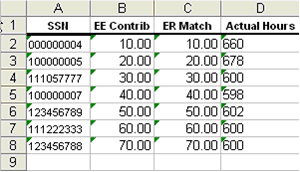
Contribution Import File Sample in MS Excel Format
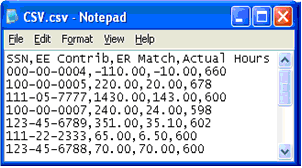
Contribution Import File Sample in .CSV Format
All fields/cells should be formatted as text.
| Social Security Number | Must contain nine digits. |
| Leading zeros must be included. | |
| Acceptable formats: 999-99-9999, 999/99/9999, or 999999999. | |
| If the Social Security number format does not contain hyphens or slashes, then ensure that the field is formatted as text. In MS-Excel, a green triangle indicates that you have stored values as text. | |
| Participant Name | Not required. |
| Loan Repayment Amount Column | If the file does not contain decimals (values are implicit -see below), check the box labeled "Check this box if dollar amount iin the file do not have decimal points" when mapping. |
| Do not include dollar signs or commas. | |
| Acceptable formats can either be: Explicit: 999.99 Implicit: 99999 (the two rightmost digits indicate cents) |
|
| Loan Number | Three digits required and must include leading zeros. For example: 001, 002, 006. |
| Division Codes | Four-digit division code. If you receive the error "Participant not in authorized division/location," please validate the division/location you entered. If you have entered the correct division/location, please contact your plan manager. |
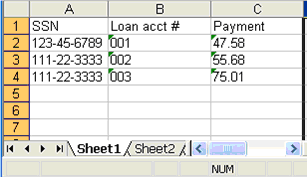
Loan Repayment Import File Sample in MS Excel Format
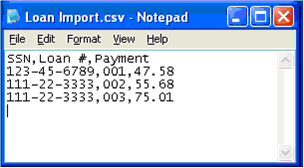
Loan Repayment Import File Sample in .CSV Format
After you've selected Next from the File Browse screen, you'll see the Select Template screen. From here you can:
A template holds the format you define for the import file, including column headings. After you select your file, you’ll define which column contains SSN, First Name, Last Name, etc.
When importing a file, verify that the template you selected contains the correct number of columns to accomodate the number of columns in the file so the file data formats correctly. You can add columns to an existing template. If necessary, click Create New Template to create a new template that matchs the format of the imported file.
A new template can be saved, so that you can reuse it or modify it to create another template for the next file import.
Select Template
You may update the following fields:
This screen is used to create a new template for an imported file. When creating a new template the following rules apply:

Creating a new template
You may update the following fields:
If you import a file other than an Excel or .csv, you will see a screen to select columns to appear in your new template.
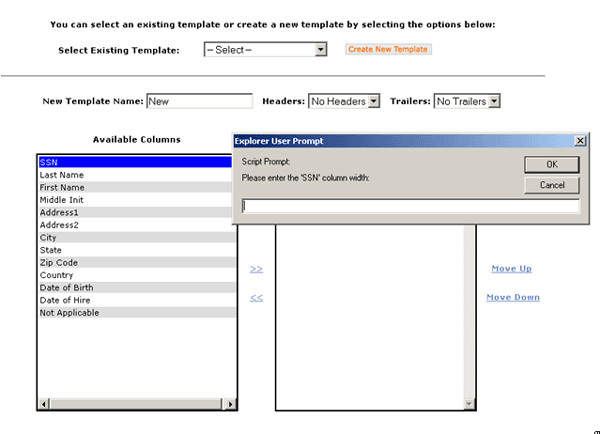
Select a column header from the left-hand menu and click the right arrow. A column width prompt will appear where you must enter the number of characters that your column can be. Enter the number and click OK to add it to the Selected Columns list on the right. The Selected Columns will appear in your new template.
To remove a column head from the Selected Columns list, highlight it and click the left arrow.
If you select an existing template you will see the screen below. Existing templates can be modified and saved.
Simply make any changes you need to make to any editable field, just as in the new template screen.
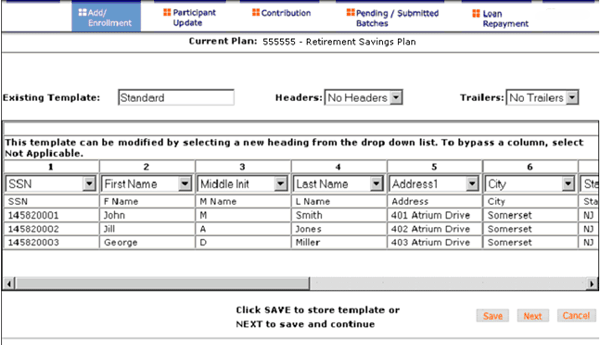
Existing Template Screen
Note: If you previously had Plan Entry Date within your template, it will now show as N/A since you no longer need to enter it; the system will automatically assign the current date.
All errors must be corrected before the new template can be saved. Click View Error Messages at the bottom of the screen to view the error details. Find the problems and correct them manually by clicking in the cell and typing correct data.
Note: You must click Next from the Template screen and advance to the error correction screen in order to correct fields.

Error message after data validation

Error message details
This screen opens in a new window to display the errors from the imported file. Use these messages as a guide to errors. They can be corrected by clicking in the field and typing directly into it.
Validations and corresponding error messages include:
|
Error Message |
Validation |
Notes |
|
"xxx-xx-xxxx- Participant Social Security number not found." |
Verify that the SSN exists in the plan. |
Appears if the SSN not in the recordkeeping system. |
|
“xx-xx-xxxx - Social Security number must be 9 digits.” |
Verify that the SSN has nine digits. |
SSN is not 9 digits. |
|
Batch Total Must Be Greater Than Zero" |
Verify that the total hours and contributions in a contributions file are greater than zero. |
Total hours and contributions must be greater than zero. |
|
"Division/Location Column Required" |
Verify that a "Division/Location" column is selected. |
This plan requires a "Division/Location" column. |
|
"Loan number cannot exceed 3 digits" |
Verify that <field> is <number> digits. |
Add leading zeros if loan number is less than 3 digits. |
|
"Loan payment amount should be equal to the expected amount or a multiple of the expected amount" |
Appears if Loan Matching is enabled in the Admin section and loan amount is not equal to the payment amount or is not a multiple. |
The error message will display the column heading. |
|
"Participant Division/Location Required" |
If the import file does not include Division/Location code values for each participant. |
Appears if a participant is missing a Division/Location (which is required). |
|
"Participant Not in Authorized Division/Location" |
Verify that the participant's division code is correct. |
You cannot import a participant for a division that you are not authorized for. |
|
"This participant currently has both $ and % election types on file. Contribution election types must match across all sources. Please call 1-800-238-6212 (select option 0 and then option 2 for Payroll/Administration) for assistance." |
Verify that the contribution election types already on file are the same for all sources, on a per-participant basis (either all dollars or all percents). |
This appears if contribution election types ($ or %) are inconsistent among the different sources, for a given participant. |
| "The participant has an invalid date of birth. We are unable to determine the correct Voya Lifetime Investment Protection fund. Please re-enter the date of birth." | Verify that the date of birth is correct, in the correct format (MM-DD-YYYY) and falls within the ILIP DOB range. |
This error appears if Voya Lifetime Investment Protection fund is chosen and the DOB field is left blank or the format is incorrect. Participants enrolling in these funds are automatically enrolled into their age-appropriate VLIP vintage (fund). |
|
Example "<Field> cannot be negative" |
Verify the amounts do not have negatives or parenthesis. |
The error message will display the column heading. |
|
Example "<Field> is limited to two decimal places" |
Verify that the dollar amounts do not have more than 2 decimal places. |
The error message will display the column heading. |
|
Example: “Select heading for column 2”. |
Verify that the column heading have been selected. |
The error message will display the column heading number. |
|
Example “Error in column #: <field> already exists.” |
Verify that the same column heading has not been selected twice. |
The error message will display the column heading and the expected length. |
|
ZIP Code does not match State. |
Verify that the ZIP code is correct. |
This is the final step to importing the Enrollment file. No further changes will be allowed after this screen.
This screen confirms that the participants in the imported file have been successfully added. Click Done to return to the Welcome screen.
You can use the Enrollment section of Payroll/Administration to enroll new participants into the plan, if applicable. You can also use Add/Enrollment to add indicative data for new participants who will enroll in the future. The Enrollment screens contain data entry fields into which you will enter participant data. If you fail to update a necessary field, the system will prompt you to return to the screen and enter the appropriate data.
At the “Import File?” option screen, select No and click Next to begin the individual enrollment process.
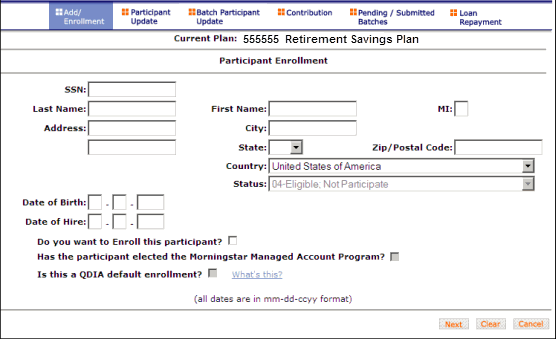
Participant Enrollment Screen
Note: Do not use the "BACKSPACE" key on your keyboard to navigate
through the entry fields on Payroll Administration screens; it will cause you
to lose all the data you have entered by returning to the previous screen without
saving. Instead, use your mouse or arrow keys to move around the screen. Similarly,
do not use the "BACK" button in your browser. Use the internal navigations
buttons in the system to return to the last screen. If you forget and go to
an "unavailable" page, try clicking the "REFRESH" button
to reload your page. You can continue to use the page but will have to re-enter
any unsaved data.
The following fields accept data entry from you; many of them are required fields:
The system has been designed to make your job easier. If you forget to update one of the necessary fields, a message will appear on the screen. For example, if you do not enter a date of hire, a message will appear at the top of the screen in red that states “Please correct the following error(s). Hire Date is required.”
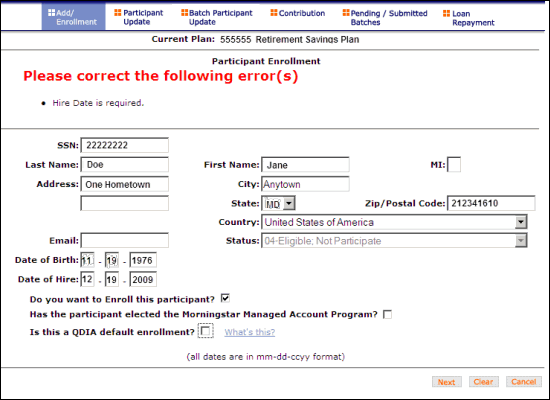
Participant Enrollment Screen with error
Enter the missing or erroneous information and click Next. Double-check the ZIP code to make sure it matches the state.
If your plan requires additional information, a second Participant Enrollment screen is displayed after clicking Next on the Participant Enrollment screen. The fields will vary depending on the plan setup.
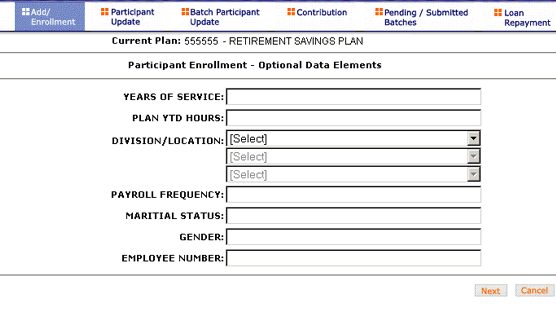
Participant Enrollment Screen 2: Optional Information
Optional data element fields will vary according to plan setup. Some require a particular type of data (alpha, numeric), or offer a drop-down menu with prefilled selections.
Fields vary depending on plan settings and may not reflect all fields in the screen shown above. The Division drop-down has a selection "Other" that will display additional divisions not in the first drop-down. These divisions may be grouped based on the first letter of the division name.
If the plan participates in Rehire functionality and the Rehire Date field
is populated with a valid date and a participant's status is terminated, Voya
updates the employee's participation status to Active. The system displays a
message reminding you to verify and update vesting information accordingly,
as well as advise the employee to setup contribution rates and confirm their
investment allocations online. Click OK to acknowledge this information
and continue with the Participant Enrollment. For vesting purposes, the Adjusted
Date of Hire/Alt Vest Date field is used to include prior service. The label
for this field may be slightly different, depending on the vesting described
in your plan document. Click What's This? next to each field for more
information.
This screen appears after the Optional Data Elements screen if you selected to enroll this participant on the first screen.
Note: If your plan requires participants to enter their own contribution elections, you will not see this screen. Participants will be expected to elect his or her investment elections and deferral percent via the Interactive Voice Response (IVR) or the participant Web site.
The appearance of these screens will vary according to your plan settings. You will be able to select the type (mode) of contributions (dollar amount or percent) and enter the amount or percent for each contribution source. You must use the same contribution election type among the sources. If there are different contribution election types on file for different sources, you'll need to call Voya for assistance.
In this example, the Contribution type is set as Percent for all sources, and
the plan is set to apply the election across all sources.
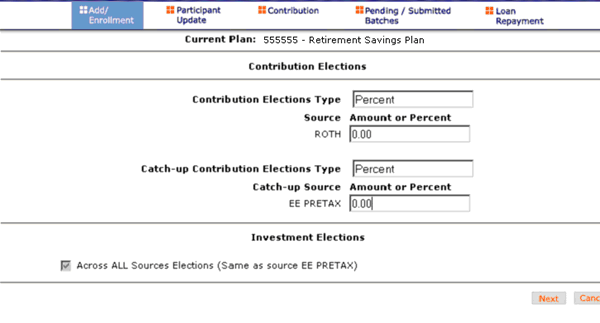
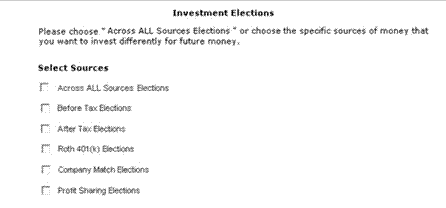
If your plan is not set to apply elections across all sources, you will be
able to select them, as below:
If the Morningstar program was selected on the the first screen, the election percentages as defined by the plan will appear in place of the Investment Election source selections, as shown in the example below:

This screen will vary according to plan settings, and may not appear. It allows you to view the investment elections by fund and amount for the participant.

Contributions can be allocated to individual funds on this screen.
If all of the information you entered is valid, you will see the following screen:

Enrollment Verification Screen
When you have successfully enrolled the participant, you will see the Enrollment Confirmation screen.
If you clicked Finish on the previous screen, your transaction will be confirmed:
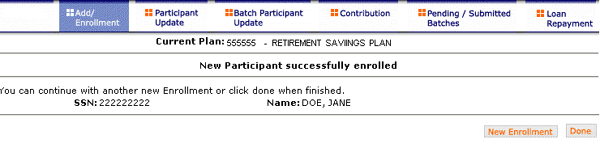
Enrollment Confirmation Screen
The Participant Update function is used to change existing participant information. The fields will be pre-populated with current values on the recordkeeping system. This option is not available for all plans.
Use this screen to select the participant to update. A participant can be selected by entering either their Social Security number (SSN) or Last Name. The “Please enter a Participant” drop-down lists defaulted to SSN, but Last Name can be selected for this search type.
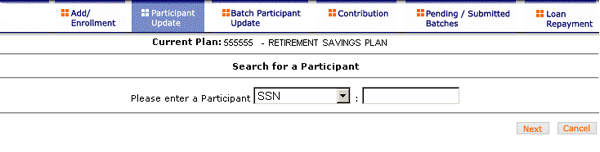
Participant Selection by SSN
Note: Fuzzy searches do not work with SSN values. Participant SSNs must
be a full nine numeric digits for the search to function.
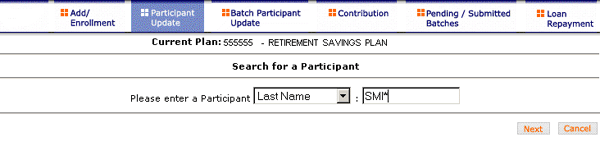
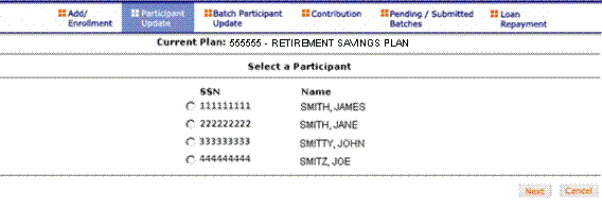
Participant Selection by Name
When processing participant demographic updates, you will be shown data-entry screens populated with the current data. To update the data, simply write over the data shown.
Note: If the employee is eligible to participate in the plan, and not enrolled, they may be enrolled on this screen, if applicable for your plan.
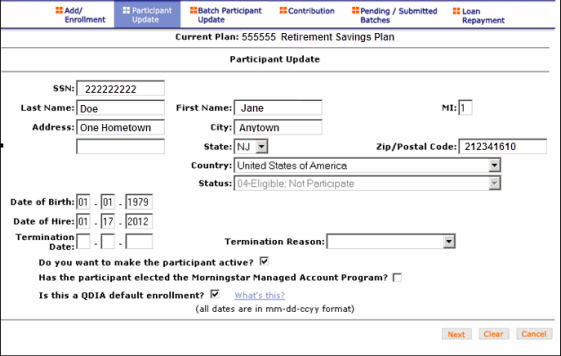
Participant Update Screen
In addition to the basic demographic fields entered at enrollment (such as name and address), this screen provides the opportunity to update the following fields:

Participant Update with Leave of Absence fields
These fields reflect Leaves of Absence, and include dates and reasons. These fields should only be used if a Leave of Absence is in effect for the participant (not usual).
If there are any errors associated with the data you entered, Payroll/Administration will display a reject message instructing you to update the appropriate fields and click Finish. Reject messages will occur if any required fields are not updated or, in the case of the ZIP code, do not validate properly against the entered state.
An example of a reject message would be:
See more error messages.
This screen is where you update the catch-up contribution elections and the source for the catch-up contributions.

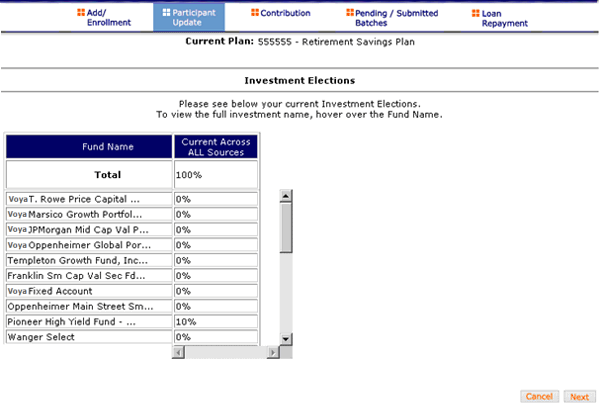
This screen will vary according to plan settings, and may not appear. It allows you to view the investment elections by fund and amount for the participant.
If the Contribution Elections Type and Catch-Up Contribution Elections Type do not match (both in dollar amount or percentage), the following error message appears:
This participant currently has both $ and % Catch-up election types on file. Contribution election types must match across all Catch-up sources. Please call 1-800-238-6212 (Select option 0 and then option 2 for Payroll/Administration) for assistance
This screen holds additional data that is specific to the needs of your plan. If additional information is not required, this screen will not appear.

Participant Update - Additional Data Screen
Note: If any hour elements are accumulated, there two fields displayed. The "YTD" field is read-only (blue text) and comes from the current database value. The "Current" field directly above (in black text) can be edited with a new value. Entering a new value for the participant will change the value in the database. If the hour elements are overlaid (YTD values each time) then only one Hours field will be displayed. The entry from the Sponsor will overlay the value in the database each time.
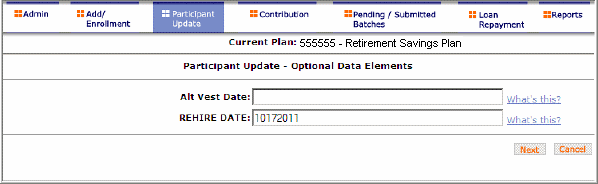
Additional Data Screen for Rehire
Note: If the plan participates in Rehire functionality and the Rehire Date field is populated with a valid date and a participant's status is terminated, Voya updates the employee's participation status to Active. The system displays a message reminding you to verify and update vesting information accordingly, as well as advise the employee to set up contribution rates and confirm their investment allocations online. Click OK to acknowledge this information and continue with the Participant Enrollment. For vesting purposes, the Adjusted Date of Hire/Alt Vest Date field is used to include prior service. Click What's This? next to each field for more information.
Fields vary depending on plan settings and may not reflect all fields in the
screen shown above. The Division drop-down has a selection "Other" that
will display additional divisions not in the first drop-down or groups based
on the first letter of the division name.
When you have finished entering participant update information, you will have the opportunity to verify it before submission.

Participant Data Verification Screen
When you have successfully entered new information for the participant, you will see the Participant Update Confirmation screen.
When you have finished entering participant update information, you will have the opportunity to verify it before submission.
As with other transactions in Payroll/Administration, you can either import a batch file of updates, or you can do it manually.
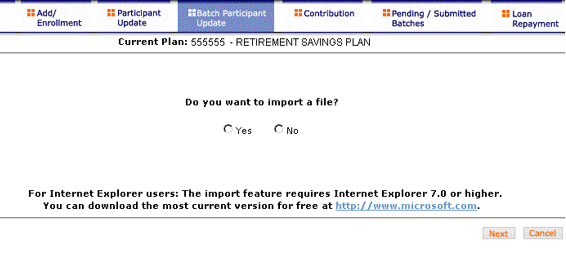
If the plan has Batch Participant File import activated, the first screen will be an option to import a file. After successfully importing a file, it will be added to the Pending/Submitted Batches list, where you can make final edits before manually submission. To use the Import File feature, you must use Internet Explorer version 7.0 or higher.
The file to be imported must meet these conditions:
From the Select Template Screen, you can:
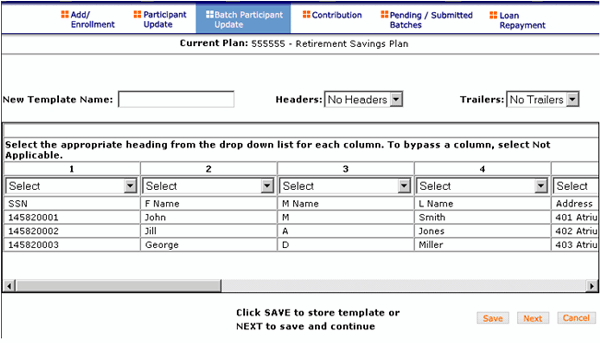
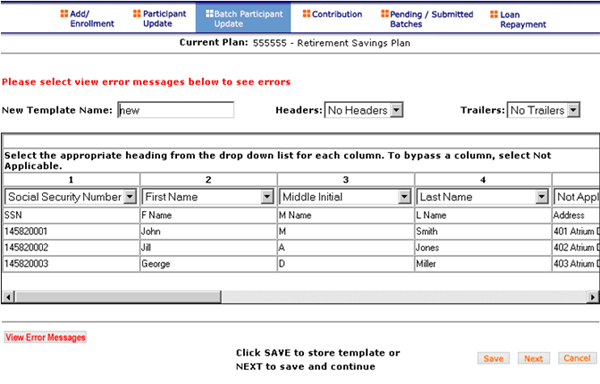
A template holds the format you define for the import file, including column headings. After you select your file, you'll define which column contains SSN, First Name, Last Name, etc. A new template can be saved, so that you can reuse it or modify it to create another template for the next file import.
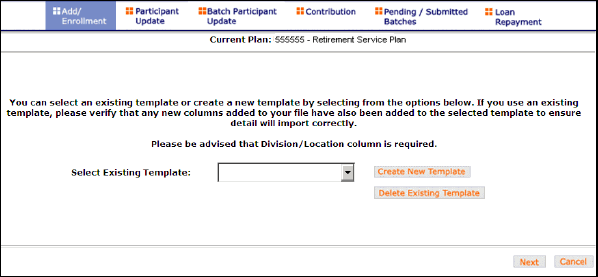
Select Template
You may update the following fields:
This screen is used to create a new template for an imported file. When creating a new template the following rules apply:

Create a new template
You may update the following fields:
If you select an existing template you will see the screen below. Existing templates can be modified and saved. Simply make any changes you need to make to any editable field, just as in the new template screen.
Existing Template Screen
All errors must be corrected before the new template can be saved. Click View Error Messages at the bottom of the screen to view the error details. Find the problems and correct them manually by clicking in the cell and typing correct data. See error messages.
Note: You must click Next from the Template screen and advance to the error correction screen in order to correct fields.
Error message after data validation
This is the final step to importing the file. No further changes will be allowed after this screen.
Click Finish to submit the participant data. This may take a few seconds.
If you selected No on the File Import screen, you will see a screen that allows you to select the columns that will appear on the Batch Participant screen. Select the fields for update by checking the box next to it. Some of the fields in the list can only be shown, not updated.
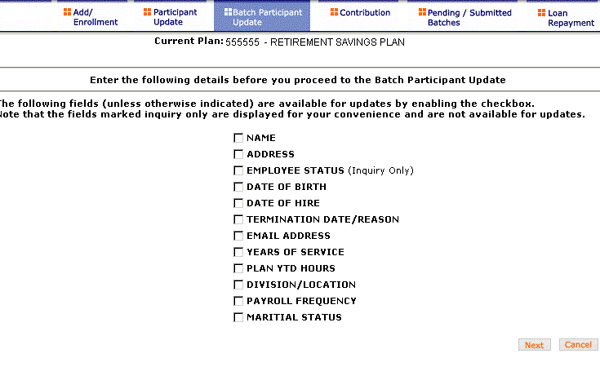
The Batch Participant Update screen allows you to update information for multiple participants in one step. It displays the participant information you selected on the previous screen. You can narrow the field of participants listed by using the Active Participants and Select Division/Location fields (see below).
There are two ways to change existing information for participants:
Once you have made all the desired changes, click the Save button to save all changes in one batch.

Note: Please make sure that all dates entered conform to the format
MMDDCCYY with no slashes. If dates are entered incorrectly, an error message
will appear after you click the Save button and all dates must be corrected.
The Contribution section allows you to enter payroll contributions. This section includes the functions:
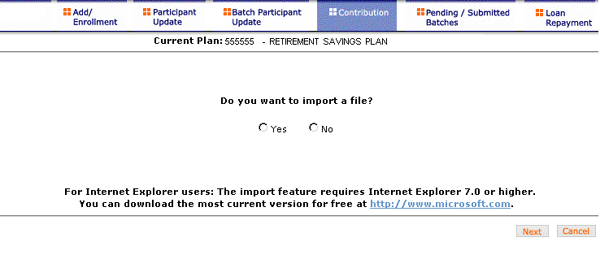
If the plan has Contribution File import activated, the first screen will be an option to import a Contribution file. After successfully importing a file, it will be added to the Pending/Submitted Batches list, where you can make final edits before manually submission.
To use the Import File feature, you must use Internet Explorer version 7.0 or higher.
The Contribution file to be imported must meet these conditions:
You may update the following fields:
You’ll use the Select Template screen to select a template, add a new template, or delete a template.
A template holds the format you define for the import file, including column headings. After you select your file, you’ll define which column contains SSN, Contribution Amount, Employer Match, etc. The template can be saved, so that you can reuse it or modify it to create another template next time.
You may update the following fields:
This screen is used to create a new template. When creating a new template the following rules apply:
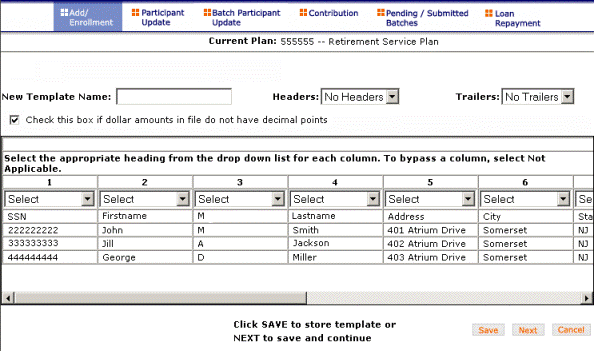
You may update the following fields:
If you select an existing template you will see the screen below. Existing templates can be modified and saved. Simply make any changes you need to make to any editable field, just as in the new template screen.
All errors must be corrected before the new template can be saved. Click View Error Messages at the bottom of the screen to view the error details. Find the problems and correct them manually by clicking in the cell and typing correct data. See error messages.
Note: You must click Next from the Template screen in order to correct fields.
All fields can be modified in either the New or Edit Existing screens.
Error message details
See error messages.
Each time you enter the contribution section, you will be asked to provide the following:

Contribution Setup Screen
Note: Please use the correct plan year payroll date when remitting contributions. The payroll date is used to clarify Current vs. Prior Year contributions as it applies to the IRS Limits.
Note: If you select the option to display participant with contribution, you must also select a batch to copy from.
Note: Previously submitted payroll files are sorted by pay date, with the most recent batch displayed first.

The Contribution Payroll Input screen allows you to enter or update contributions for the participants in the plan. You may select and copy a previously submitted payroll file and make changes based on current information, or you may generate a payroll using new information.
The participants are sorted in alphabetical order by default. You can sort by Social Security number order by clicking the SSN column header.
A Catch Up option, if available, will display and allow the user to designate catch-up contributions. A batch can include both catch-up and non catch-up contributions.
If you have contributions for a newly eligible participant, you will need to create a new enrollment by selecting New Enrollment at the bottom of the screen. Once the enrollment is completed, you may continue entering payroll data on the Contribution screen.
Note: Only plans offering New Enrollment functionality will see the New Enrollment button at the bottom of the screen.

Some columns will have drop-down selection menus (these will differ based on your plan settings and permissions). Many of these values can be changed on this screen.
If Division/Location values are selectable, each participant must have a value and used for contribution funding.
Once you have clicked Save or Next on the Contribution Import
screen, you proceed to Pending/Submitted Batches to view your file for errors
or warnings (see the next section).
If forfeiture funds are set up for your plan, you will see your forfeiture balance by fund source on this screen. Forfeitures represent any nonvested amount that a participant forfeits due to a termination.
The forfeiture amount will be directed to a predetermined fund. You may edit individual participant amounts to offset forfeitures by clicking in an individual cell for that fund. Total amounts will display at the top of the fund column.
Some columns will have drop-down selection menus (these will differ based on
your plan settings and permissions). Many of these values can be changed on
this screen.
If Division/Location values are selectable, each participant must have a value
and used for contribution funding.
Once you have clicked Save or Next from this screen, you must proceed to Pending/Submitted Batches to view your file for errors or warnings (see the next section).
If applicable, click New Enrollment if you have contributions for a newly eligible participant. This button will direct you to the Participant Enrollment screen. Once the enrollment is completed, you may continue entering payroll data on the contribution screens.
By clicking on a participant's name, you can link to the Participant Update section to view or update participant information.
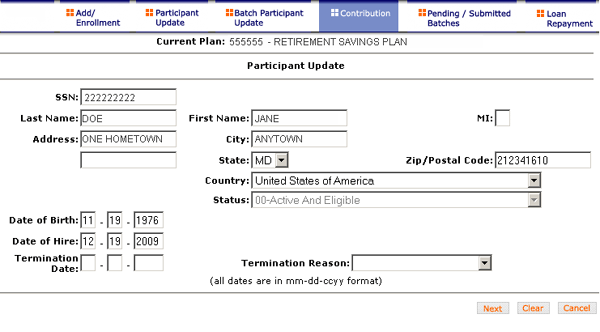
Participant Update Screen
To return to the open Contribution batch file, click Cancel. You can also return to the Contribution batch file when you click Finish on the Participant Update Verification screen.
The Add/Delete Participant screen allows you to add participants from another division or location to a contribution file, or delete participants from the batch. This screen is only available for some plans that use multiple locations.

Participants from different divisions can be added to a pending batch. Participants that have previously been added with this method will appear underneath the SSN Entry field with a check box next to their name.
To add a participant to the selected batch:
To delete a previously added participant:
All batch files for Contribution and Loan activity can be viewed with this feature. Pending batch files may be edited from this screen if they are not submitted. These batches include:
Submitted batch files cannot be edited. Payroll/Administration allows you to enter payroll data and, if desired, append the submission of the data for a later date.
Click Pending/Submitted Batches to display the Pending/Batches screen. The default display is of Pending Batches (a list of all files created but not submitted), of both payroll types (Contributions and Loans). Use the pull-down next to “Please select batch types” to select Submitted Batches which will display submitted and deleted batches. Displayed batches are sorted in descending order of payroll date, then by payroll type.
Pending Batches is the default option for this screen and displays the following batch detail information (may vary according to plan):
| Division/Location |
Batch location |
| Batch type |
Contributions |
| Batch name |
Your name for the batch. |
| Payroll date |
Date you entered for the batch. This format is YYYY-MM-DD-<Sequence Number>. The sequence number is assigned automatically by the system. |
| Status | Pending batches:
|
| Contribution total |
Total batch contribution. |
Select the file to review or edit, then submit the file for processing.

Pending Batches Screen
This screen allows you to review batch information and select a remittance method (if allowed for your plan type).
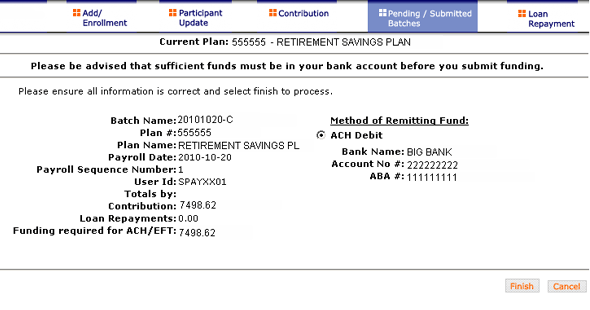
Note: If forfeiture offsetting is set up for your plan, you will see your forfeiture balance by fund source on this screen. Forfeitures represent any non-vested amount that a participant forfeits due to a termination. The forfeiture amount will be directed to a predetermined fund.
A final screen will display the submitted batch information. When the batch has been submitted for processing, you will see the Batch Submission Confirmation screen.
When the batch has been submitted for processing, you will see the Batch Submission
Confirmation screen. Click the Submit Now button to submit the batch.
You will be prompted with a popup confirmation screen that allows you to cancel
the batch. Click OK to continue, or Cancel to return to the Pending/Submitted
Batches screen.

Batch Submission Confirmation Screen
Note: Batches submitted successfully on weekends and market holidays, or after 4:00 pm ET (or earlier, should the market close for trading prior to 4:00 pm ET) on any business day, will not be processed until the following business day.
Pending batches can be edited. If the payroll has errors, the status will read: “T-Post Ended with Errors.”

All errors must be corrected before the file can be submitted for funding. To view and correct the errors, select the batch and click Edit.

If you edit a scheduled pending batch, Payroll Administration removes the Schedule Date for submission that was previously entered. Complete the following to ensure that the edited batch has a scheduled date for submission:
Select a value in the drop-down marked “Multiply All Payment Amounts by” to multiply the payment values by that factor. For example, if “2” is selected, then all payment amounts are multiplied by two.
Error Message Screen
All errors must be corrected before a batch can be submitted. Click View Error Messages at the bottom of the screen to view the error details. Find the problems and correct them manually by clicking in the cell and typing correct data.
If the contribution batch does not have any errors, you will see a “Ready to Post” message. With this message, click Submit to proceed to the Verification and Remittance screen.
Data will be electronically scanned as it’s imported. The following error messages could appear:
See more error messages.
Note: Before the data is accepted, all reject messages must be resolved and warning messages acknowledged by selecting Edit on the Pending Batches screen.
Open the pull-down menu and select Submitted Batches to display the client’s previously submitted batches. Note that the submitted batches have no options to edit, delete, or submit. These options are only available for pending batches.

Submitted Batches Screen
Columns on this screen may vary depending on the types of transactions available in your particular plan setup. In the first column, there will be a Select column with bubbles next to each batch. The next column, Batch Details, will show the following batch information:
Other columns will appear as dictated by available plan transaction types. Displayed batches are sorted in descending order of payroll date, then by payroll type.
When the batch is submitted you will see a message:

Select a batch to print by clicking the bubble next to it in the Select column. Then click the Print button below the results pane. This function will print out a detailed, participant-level version of the batch. The program will ask you to select a sort type for this report:
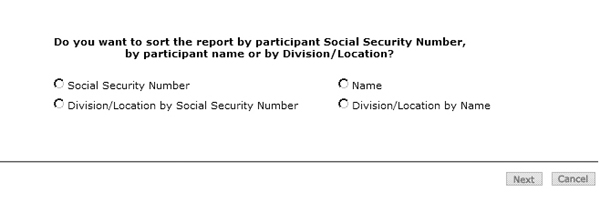
Click the Next button to proceed to the batch participant report:

Participant-level data for the selected batch.
Submitted batches are saved for 18 months.
This option allows the user to enter loan repayments at a participant level. After successfully importing a file, it will be added to the Pending/Submitted Batches list, where you can make final edits before manual submission.
Note: Plans not offering participant loans will not have the loan repayment section.
If the Loan Import function was selected by the client for this plan, when you click on the Loan Repayment section in the top navigation bar, you will asked if you would like to import a file. To use the Import File feature, you must use Internet Explorer version 7.0 or higher.
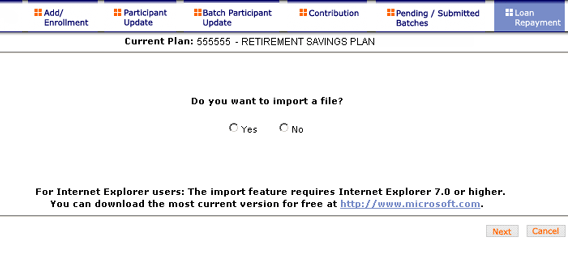
The File Browse screen allows you to select a loan file to import. The Loan Repayment file to be imported must meet these conditions:
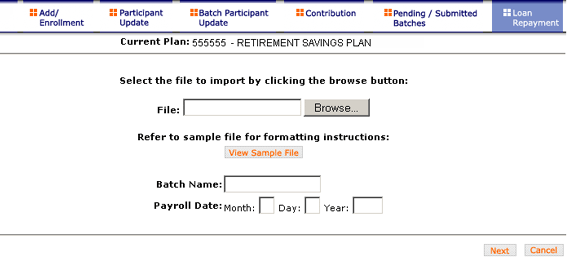
You may update the following fields:
You’ll use the Select Template screen to select a template, add a new template, or delete a template. A template holds the format you define for the import file, including column headings. After you select your file, you’ll define which column has SSN, loan amount, loan payment amount, etc. The template can be saved, so that you can reuse it or modify it to create another template next time.

You may update the following fields:
If you select an existing template you will see the screen below. Existing templates can be modified and saved. Simply make any changes you need to make to any editable field, just as in the new template page.

This screen is used to create a new template. When creating a new template the following rules apply:

You may update the following fields:
All errors must be corrected before the Loan Repayment batch can be saved. Click View Error Messages at the bottom of the screen to view the error details. Find the problems and correct them manually by clicking in the cell and typing correct data.
Note: You must click Next from the Template screen in order to correct fields.
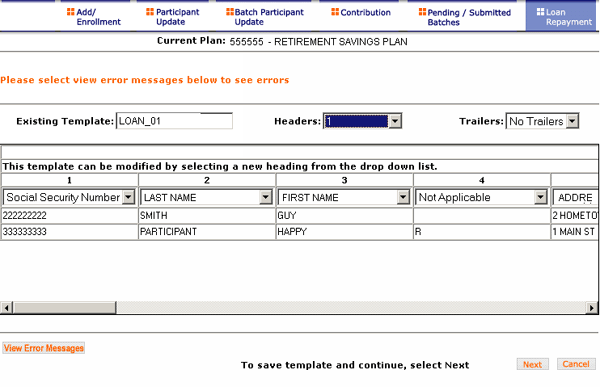
This screen opens in a new window to display the errors from the imported file. Close this and return to the Error Messages screen to correct the errors.
See error messages.
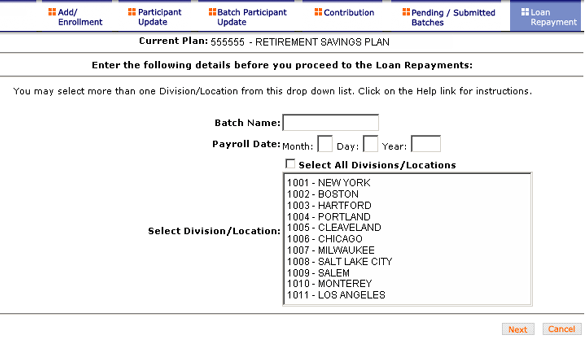
Loan Repayment Screen
You may update the following fields:
The Loan Input screen retrieves and displays all active participant loans in the plan.
Loan Input Screen
The participants will be sorted in alphabetical order by last name. You can
also sort by SSN by double-clicking the SSN column heading.
Some columns will have drop-down selection menus (these will differ based on
your plan settings and permissions). Many of these values can be changed on
this screen.
You may update the following fields:
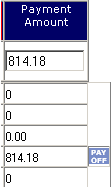
If you select Payoff Amount for a participant loan, a PAYOFF image is displayed.
You can change your selection, however the last selected amount is the one displayed in the input box.
Your recordkeeper may use the Reports section of Payroll/Administration to notify you when a participant changes his or her contribution deferral percent. Once created, the files will be placed in a database/directory readable by the Payroll/Administration application. Payroll/Administration will provide you with printable copies of these reports. You can use this report to update your payroll system.
Please note that not all plans are able to provide the reporting feature.

Reports Screen
Click on any report title to display the text of the report.
To print the report, click the print icon  . Each report
will list the following information:
. Each report
will list the following information: